What does it cost to use Navisphere Carrier?
Navisphere Carrier is free to all C.H. Robinson contract carriers. To get started, simply create a Navisphere account.
Frequently asked questions
Q: How do I create an account online?
How do I create an account online?
Step 1: Go to the registration page
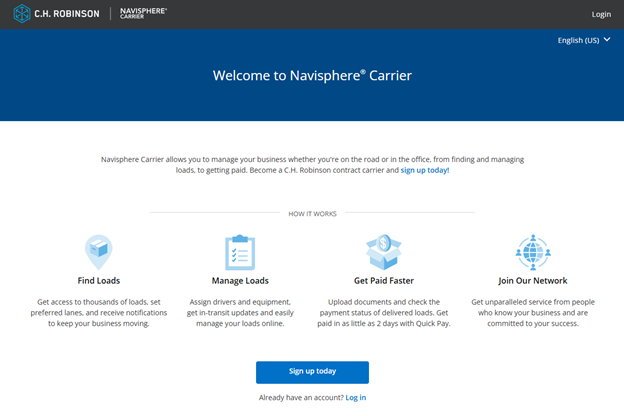
1. Open your web browser on a desktop or mobile device and navigate to the Navisphere Carrier Registration page.
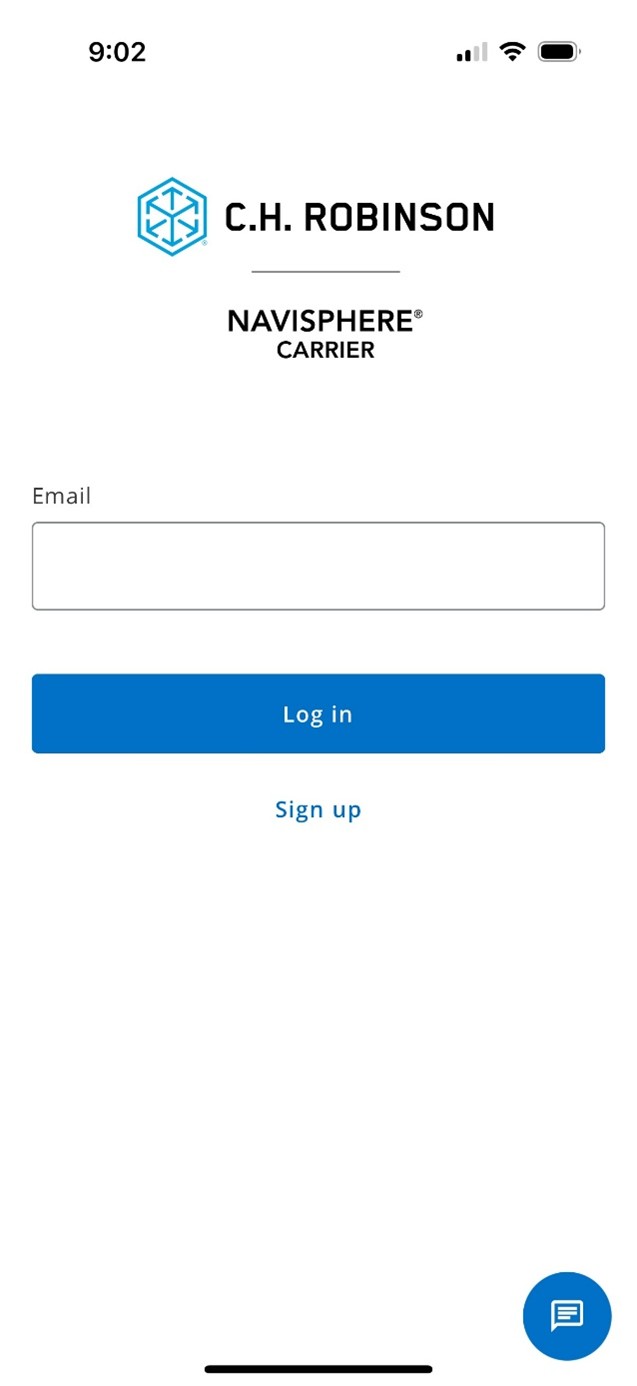
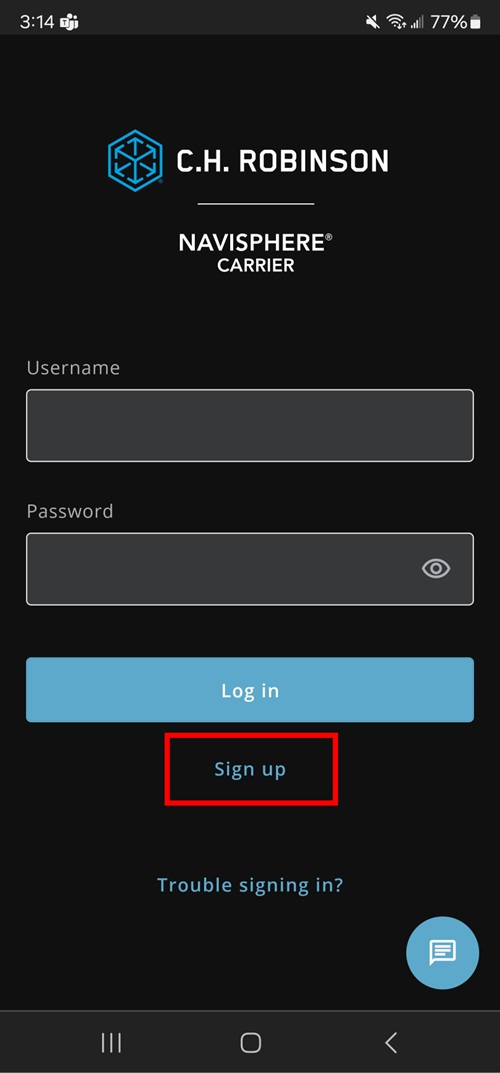
Step 1a: If you’re using the Navisphere Carrier mobile app, start your registration by clicking sign up after you download and open the app.
Step 2: Fill in the required information
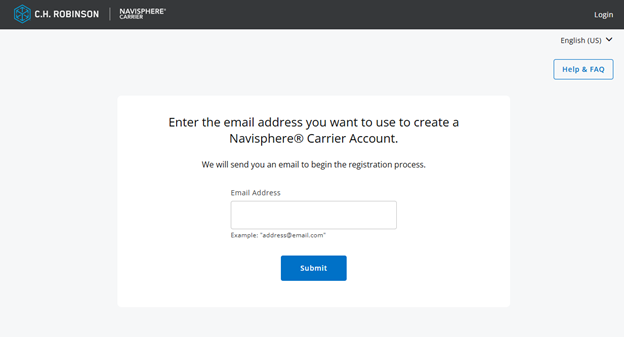
After you click or tap sign up today on the registration page, you will be prompted to enter the following information:- Email address: Provide a valid email address. This will be used for account verification and communication. Once you hit submit, you’ll see a screen letting you know a verification email was sent.
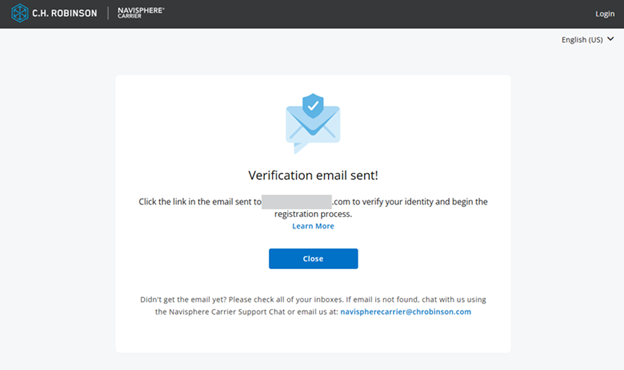
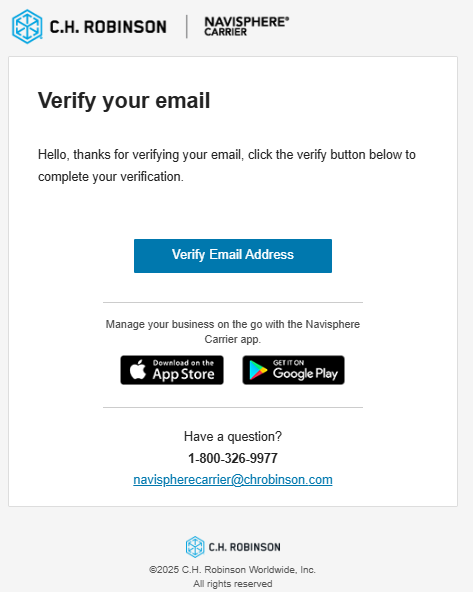
3. Verify email: Click or tap the “Verify Email Address” button in the email sent to verify your identity and begin the registration process
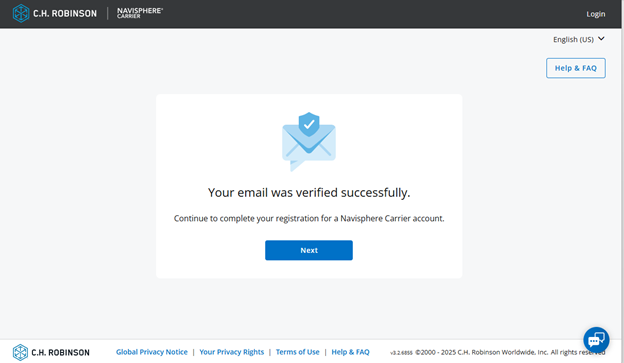
4.) Continue registration: Once your email has been verified, continue your registration within Navisphere Carrier.
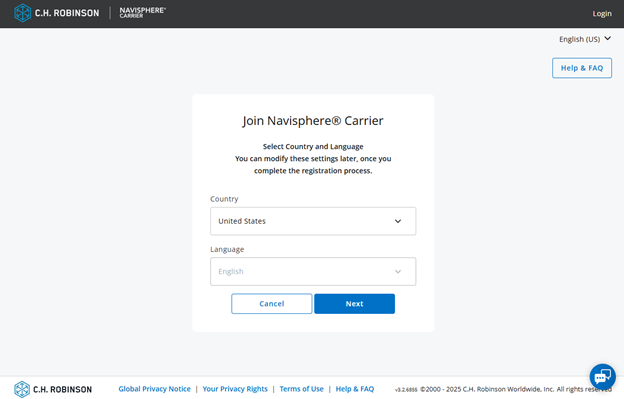
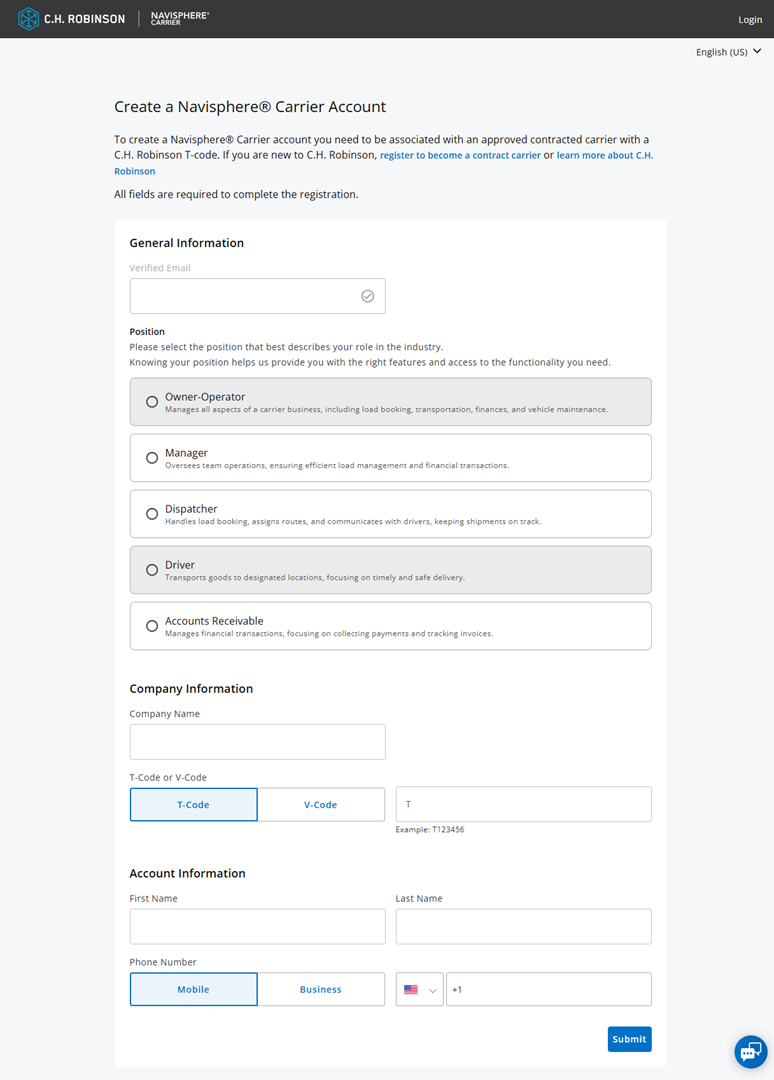
5.Finalize registration: Select your position within the company, enter the company name, insert the T-code number that was sent to you when you completed the application to haul for C.H. Robinson in Highway, and complete the rest of your account information to finalize your Navisphere Carrier registration.
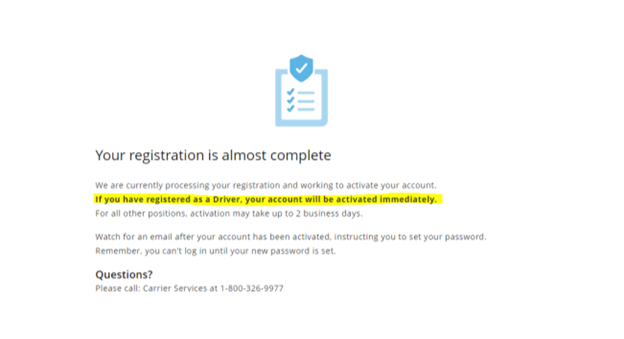
6. Registration almost complete: After submitting your registration, you will see the following screen:
7. Set your password:
- If you registered as a Driver, the account request will be approved and activated automatically, and you will receive an email that your account has been activated and you must set an Okta password from this email.
- If you registered as an owner-operator, manager, dispatcher, or accounts receivable, an account registration approval email will be sent to the primary contact for a given Tcode – this email requires a response in 7 days of approved or rejected – note that the activation that is referenced taking up to 2 business days is the process AFTER carrier services receives the approved or rejected response to the email below. This email notification will come from the following address: [email protected]
- Once your registration is approved, you will receive an email notification to set your password through Okta – this step is required before newly registered users can successfully log in – password reset and unlock account logic from the login page will not work until this step is complete
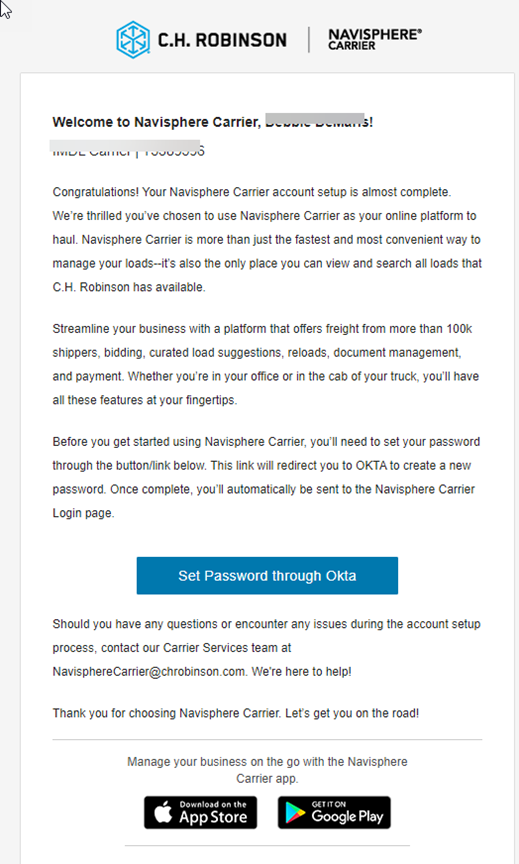
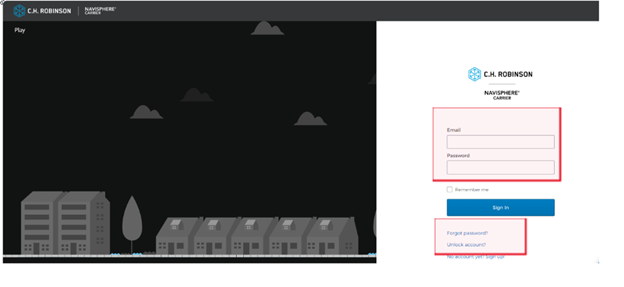
8. Login with New Credentials: Once you’ve updated your account to email and set a new password, the login page will ask you to enter your email address for login (if you have saved your previous username using browser settings, this may still default and will need to be cleared/replaced with email address). Note: You are able to reset your password and unlock your account from the login page.
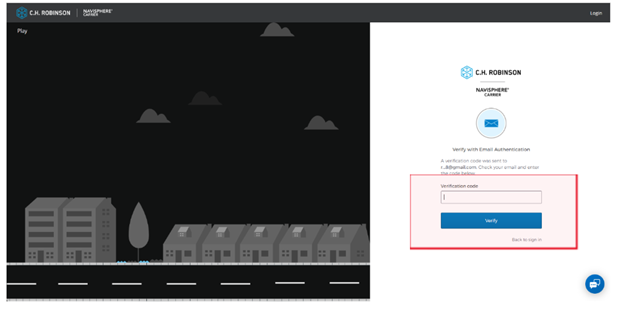
9. Verify with email authentication: Once “Sign In” is selected, you will be presented with a prompt to do multifactor authentication (MFA) through email.
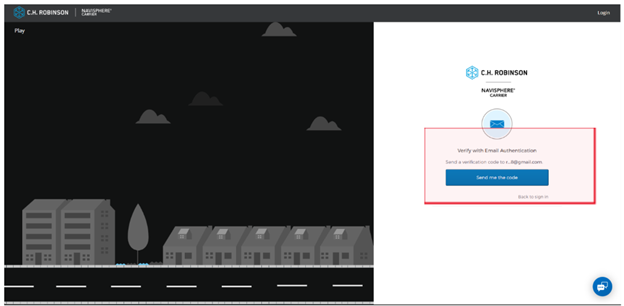
Once send me the code is clicked, an email is sent to your email address.
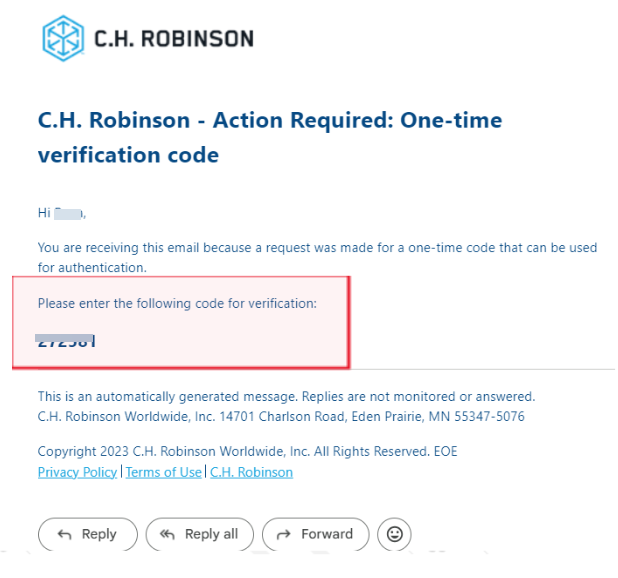
Enter the code from the verification email and click Verify to successfully log in. Please note, MFA login will need to be used each time you log into Navisphere Carrier.
Q: How do I create an account in the app?
If a motor carrier has already created an account online, they can log into the app with the same credentials.
1.) Tap Sign up
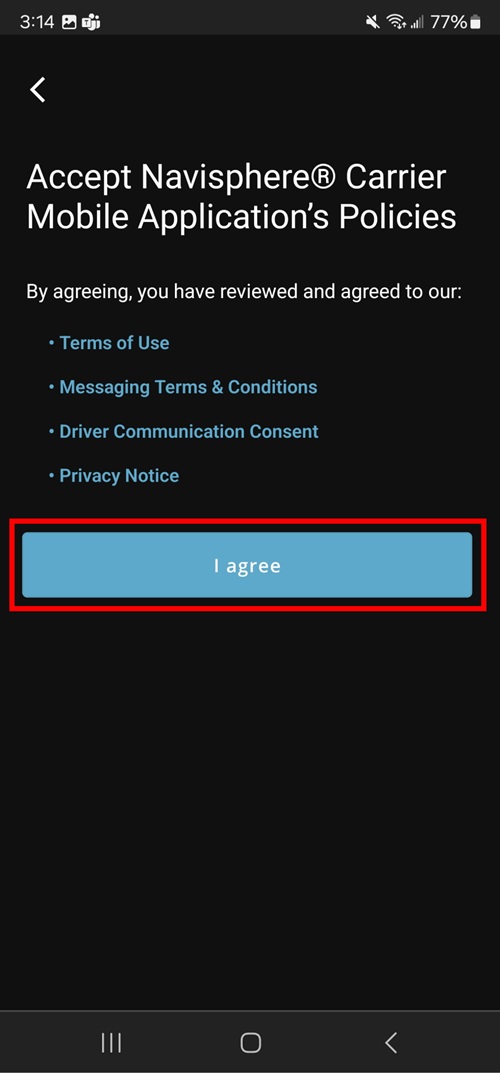
2.) Read the Navisphere Carrier Mobile Application policies and tap I agree.
3.) Select the role that best describes you and tap Continue.
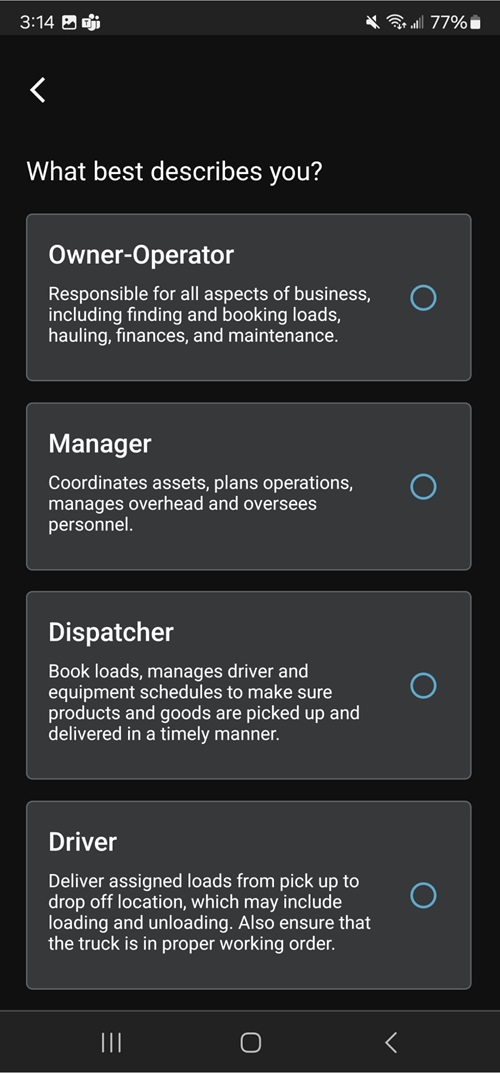
4.) Select whether you have a T-code or are new to C.H. Robinson, then tap Continue.
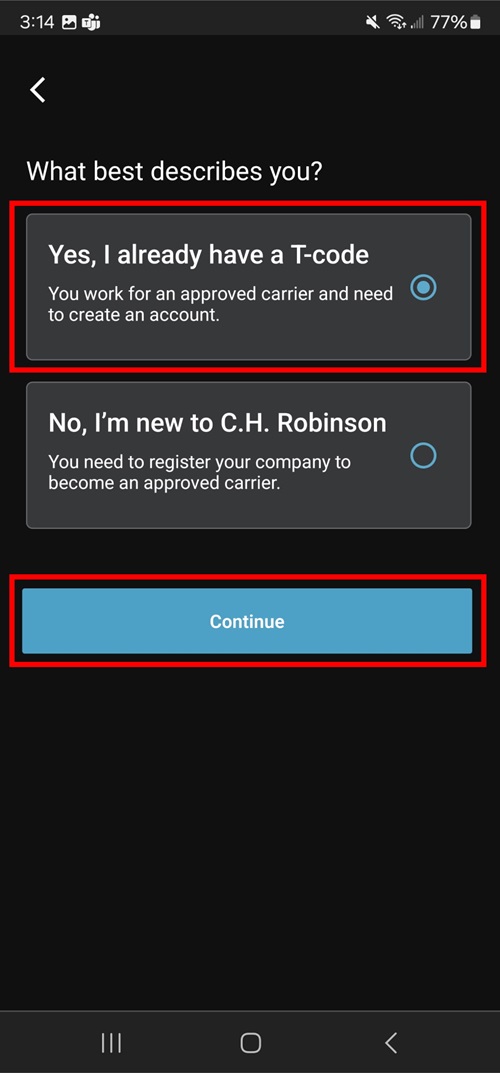
5.) If you have a T-code, fill out your account information and then tap Continue.
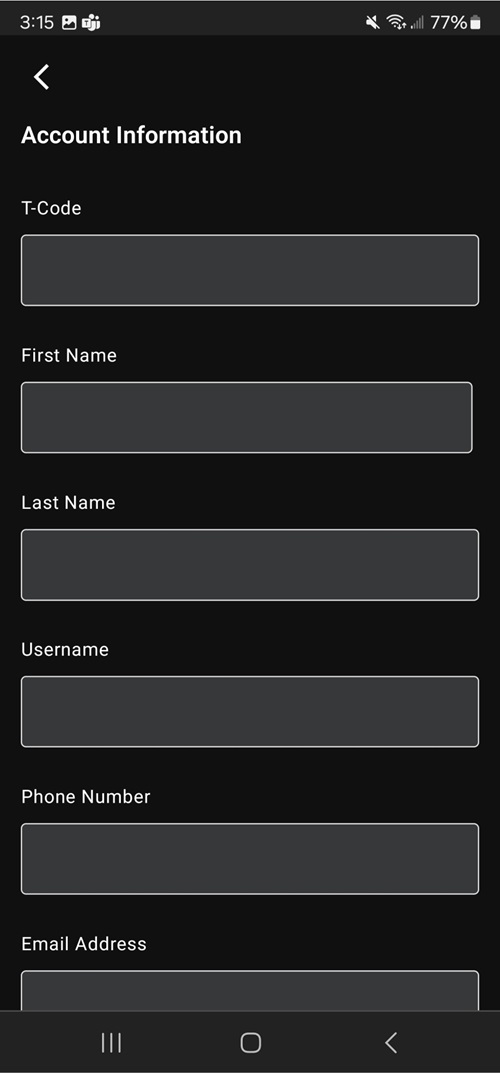
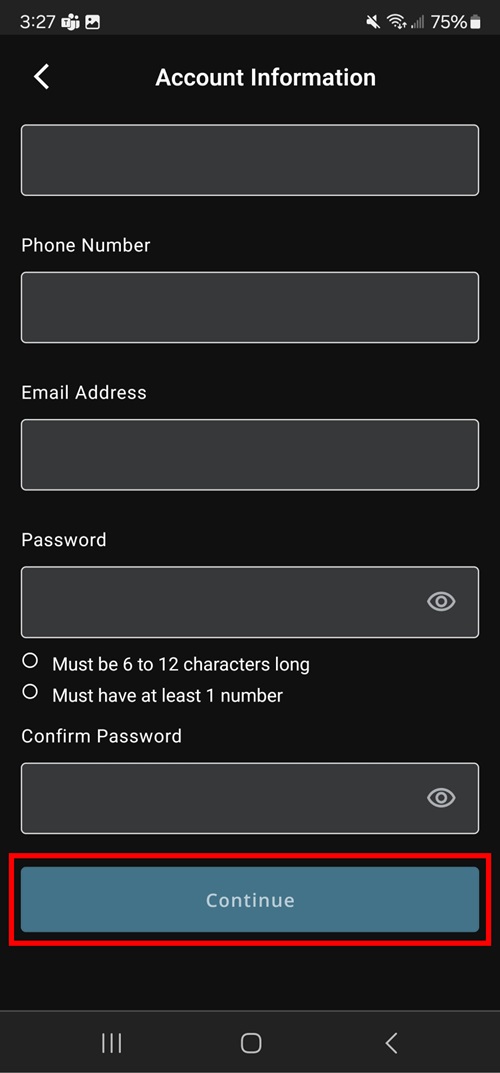
6.) From there, fill out your company information then tap Continue.
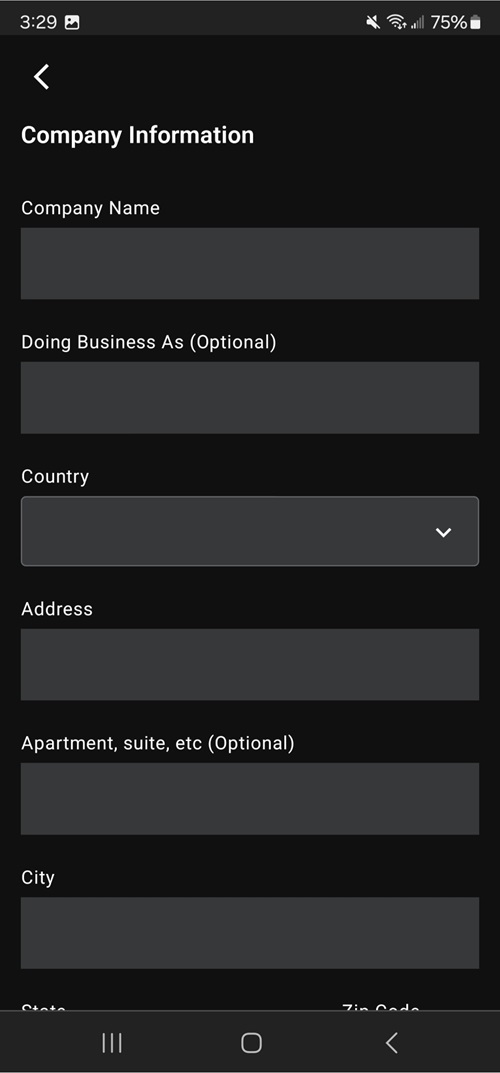
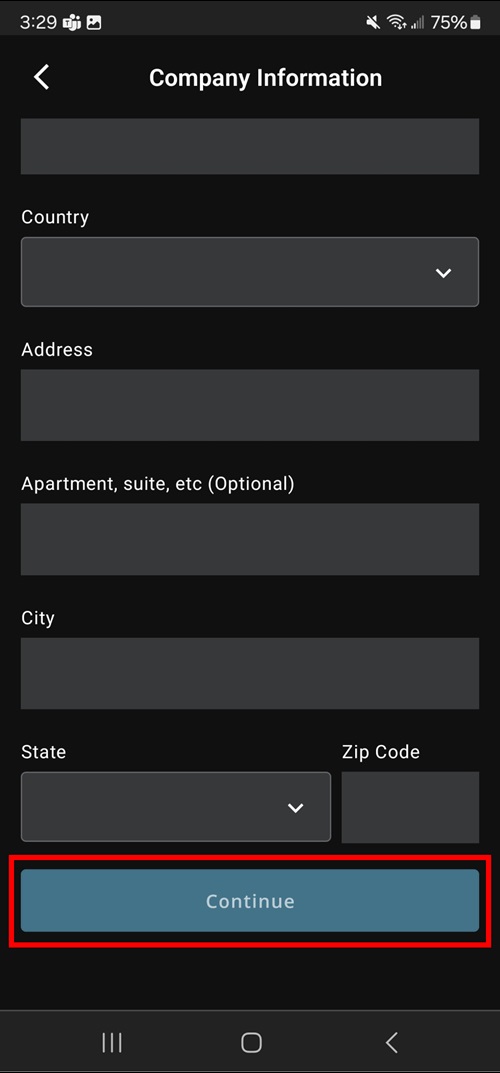
7.) Once this is complete, you should see a thank you screen that lets you know your application is now under review.
.jpg?h=1073&w=500)